Let’s get Pipkin going.
Three steps, about a minute. You’ll need Codex or Claude signed in on your computer.
Step 1: Install the CLI
On your computer, open a terminal and run the command for your system. It reads your allowance from the apps you already use and starts on its own each time you sign in to your computer.
On your phone? Open pipkin.io/start on your computer to copy the command.
Terminal$
curl -fsSL https://pipkin.io/install.sh | shApple silicon and Intel. If pipkin isn't found afterwards, add ~/.local/bin to your PATH. If macOS asks to use “Claude Safe Storage”, enter your Mac password and choose Always Allow.
Read the script$
curl -fsSL https://pipkin.io/install.sh | shARM64 and x86-64. Add ~/.local/bin to your PATH if needed; the display's serial port may need dialout (or uucp) group access.
Read the scriptPS>
irm https://pipkin.io/install.ps1 | iexARM64 and x64. Open a new terminal afterwards so pipkin is on your PATH.
Read the scriptStep 2: Plug Pipkin in
Connect Pipkin to your computer with its USB cable. Pip holds on to the loading bar while Pipkin looks for your computer.

Step 3: Glance, then get back to work
When your first reading arrives, Pip hops and your allowance takes over the screen. From then on it keeps itself up to date.
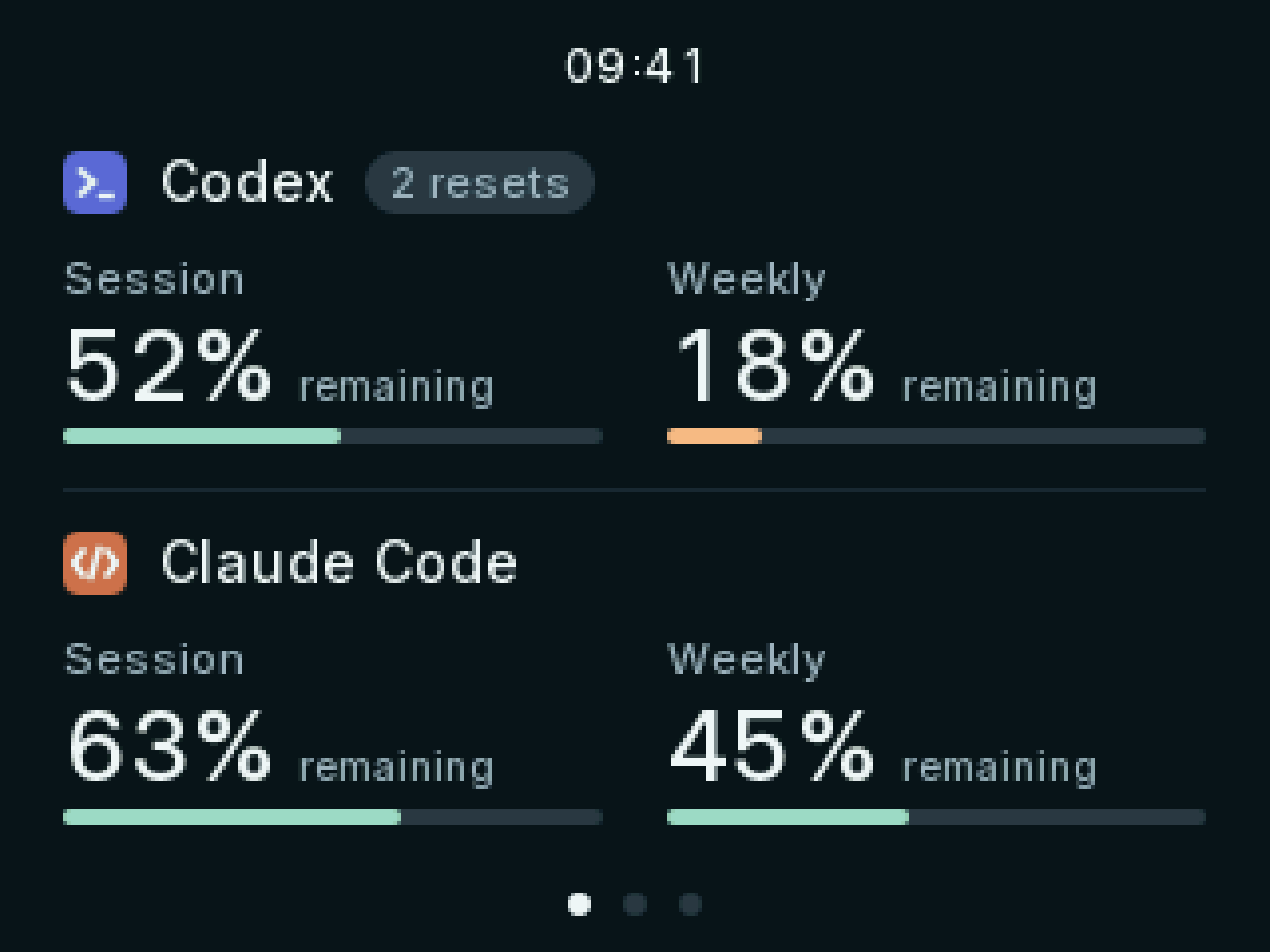
- Swipe, or tap an app on the overview, to move between the overview and each app’s page.
- Hold the clock for a status page.
- When no new readings arrive for a while, as when your computer is off or asleep, the screen dims and then goes dark. It lights up again as soon as a new reading arrives, or for a minute at a touch.
If something’s not right
- Stuck on “Looking for your computer”
- Use the cable from the box. Many USB cables carry power but not data, so the screen lights up but your computer never sees it. Then run
pipkin statusin a terminal; it shows whether the CLI is running and whether it can see the display. On Linux, your user needs thedialoutgroup (uucpon Arch): runsudo usermod -aG dialout $USER, then sign out and back in. - “Waiting for usage”
- Pipkin can see your computer but has nothing to show yet. Sign in to Codex or Claude Code on this computer.
pipkinnot found- On macOS or Linux, run it as
~/.local/bin/pipkin, or add~/.local/binto your PATH. On Windows, open a new terminal.
More commands and details are in the CLI documentation.